

Disclosure: some links in this guide may be partner links. If you sign up through them, we may earn a commission at no extra cost to you. It does not change what we write.
Quick answer: To track competitor prices, pick the lowest rung that covers your list: a dated spreadsheet for a few products, page-change alerts for occasional checks, a no-code scraper such as Browse AI for structured rows on a schedule, or price intelligence software for full catalog matching.
Key takeaways
- Start with a manual spreadsheet; automate only once the weekly check keeps slipping.
- Browse AI's free plan covers 2 websites with hourly checks at most, enough for a small pilot.
- Match products carefully: same size, pack, bundle and shipping terms, or the comparison misleads you.
- A person still checks context and makes every pricing decision; the tool only collects and alerts.
To track competitor prices without code, train a no-code scraping robot (Browse AI is one option) on each competitor product page, set it to check on a schedule, and sync every change into a Google Sheet that a person reviews once a week. The robot does the repetitive clicking and copying; you keep the decisions about whether to match, ignore, or undercut a price.
This guide maps that workflow step by step: what the manual version looks like, which steps Browse AI can take over, where a human checkpoint belongs, what it costs as of November 2026, and how to run a one- or two-week pilot before you pay for a plan.
How this guide was put together: based on Browse AI's official pricing page, product pages and help center, checked November 2026. We have not run a paid account test.
Why is it hard to track competitor prices by hand?
Most small teams start with a spreadsheet and a calendar reminder. Someone opens a stack of competitor tabs, copies prices, and pastes them into rows. Then the reminder gets snoozed during a busy week, a competitor runs a weekend sale nobody sees, and the sheet goes stale.
The analysis is not the hard part; deciding how to respond takes judgment, and that stays with you. The collection step is the problem: repetitive, easy to skip, and full of gaps exactly when the market moves. That is the step a monitoring tool can take over.
Competitor price monitoring software comes in two shapes. Dedicated price intelligence tools (Prisync, for example) match catalogs and focus on repricing. General web scraping and website change monitoring tools, such as Browse AI or Visualping, watch any page you point them at. This guide uses the second approach, which fits a small team tracking a handful of rivals in a spreadsheet.
What are the ways to track competitor prices, from manual to automated?
Think of competitor price tracking as a ladder. Each rung removes more manual work and adds more setup and cost. Climb only as high as your product list and your check frequency require.
| Rung | Best for | Setup effort | What you still do by hand | Cost to start |
|---|---|---|---|---|
| 1. Manual spreadsheet | A handful of products whose prices rarely change | None | Visiting pages, copying, comparing, deciding | Nothing extra |
| 2. Spreadsheet formulas (IMPORTXML in Google Sheets) | Simple pages that show the price in plain HTML | Low to medium: one XPath per site | Fixing formulas when they break, checking pages that load prices with JavaScript, deciding | Included with a Google account |
| 3. Page-change alerts (Visualping) | “Tell me when this page changes” for a few key pages | Low | Reading each alert, logging prices yourself, deciding | Check Visualping’s current pricing page |
| 4. No-code scraper with monitoring (Browse AI) | Structured rows in a sheet across several competitors | Medium: train one robot per site | Weekly review, product matching, retraining after redesigns, deciding | Free plan with 50 credits a month and 2 websites; paid plans on the pricing page |
| 5. Price intelligence software (Prisync) | Ecommerce catalogs that need product matching and repricing rules | Medium to high: catalog import and matching | Approving rule-based price changes | Check Prisync’s current pricing page |
A sixth option, writing your own scraper in Python or a similar language, gives full control but turns price tracking into a small software project that someone has to maintain. It rarely makes sense for a team without a developer.
Two things that matter on every rung
Product matching. A comparison is only useful if you compare the same thing. Record size, pack count, bundle contents and shipping terms next to each price, and keep one row per matched pair of products. A cheaper listing that ships a smaller pack is not a price cut.
Check frequency. Match the schedule to how often your market actually moves. Most small teams only need a daily or weekly view; flash-sale categories may need more. Browse AI’s free plan checks at most hourly, and the Personal and Professional plans list monitoring as often as every 5 minutes, but every extra check spends credits.
How to choose: stay on rung 1 until the weekly check starts slipping. Try rung 2 if competitor pages are simple and you are comfortable with formulas. Move to rung 4 when you track several sites and want history in a sheet without maintaining formulas, and consider rung 5 once you sell a large catalog and want repricing rules. On every rung, the weekly review is the step that slips. Protect it with a recurring block (our guide to auto-scheduling tasks and focus time shows how), and log each pricing decision the way you would in an AI meeting notes workflow.
What does the competitor price monitoring workflow look like before and after?
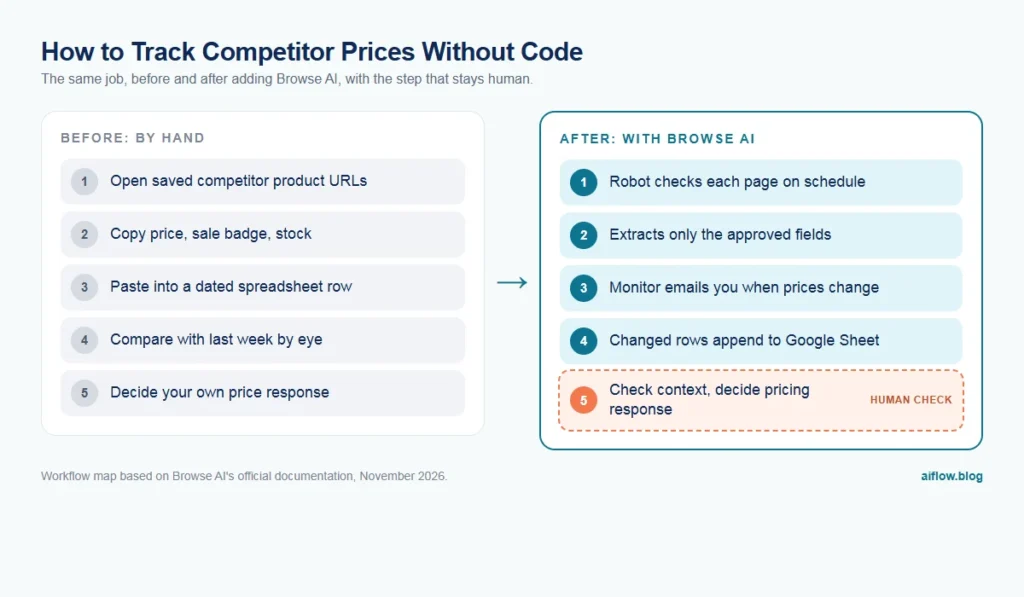
Here is the same weekly job mapped twice. The “after” version keeps every decision with a person.
Before: manual tracking
- Open a saved list of competitor product URLs.
- Visit each page, find the price, sale badge and stock status.
- Copy each value into a spreadsheet row with today’s date.
- Compare against last week’s row by eye.
- Flag big moves in a team chat.
- Decide whether to adjust your own price or promotion.
After: robot collects, person decides
- A Browse AI robot, trained once per site, visits each product page on a schedule.
- The robot extracts the fields you approved (product name, price, sale price, stock text).
- A monitor compares each check with the previous one and emails you when captured text changes.
- Each check appends new or changed rows to a Google Sheet tab.
- A person reviews the sheet weekly (or reacts to an alert), checks the source page for context, and decides what to do.
- Failed runs trigger a notification so someone can retrain the robot.
| Step | Who does it now | Who does it after |
|---|---|---|
| Visit pages and copy prices | Person | Robot on a schedule |
| Spot what changed | Person, by eye | Monitor (change detection + email) |
| Log history | Person, manual rows | Google Sheets sync |
| Check context (bundle, shipping, coupon) | Person | Person |
| Pricing decision | Person | Person |
| Fix broken collection | Not noticed | Person, after a failure alert |
How do you set up Browse AI to track competitor prices?
The setup below follows Browse AI’s monitoring guide and Google Sheets sync guide. Budget an afternoon for the first competitor and less for each one after.
- Build your URL list first. One row per competitor product URL, with your matching product next to it. Do the matching once, by hand.
- Check for a prebuilt robot. Browse AI lists 200+ prebuilt robots maintained by its team for popular sites. If a competitor sells on a large marketplace, one may already exist.
- Otherwise, create a robot and choose “Monitor for changes.” Point it at one product page. Browse AI proposes data columns; review them, keep only what you need (name, price, sale price, availability), and approve the robot.
- Answer the monitor questions. When you save, Browse AI asks how often to check and whether to send email alerts. This creates a “Default monitor” in the robot’s Monitor tab. Pick a frequency that matches how often prices realistically move; for most retail pages, daily is plenty.
- Add the other URLs. One robot can run on many pages with the same layout. Browse AI documents a Bulk Monitor option that imports a CSV of URLs; note that the help article says it is switched on per account through support.
- Connect Google Sheets. In the robot’s Integrate tab, enable syncing, authorize a Google account with edit access, pick or create a spreadsheet, and choose whether to sync changed data, added data, or both. Each check appends rows to a tab in that spreadsheet.
- Turn on alerts you will actually read. Email notifications send one message per check that finds a change, showing the previous and new value. If that is too noisy, send data to a CRM or another app through Zapier, Make or Pabbly Connect instead, and filter for new items only.
- Add a “context” column. The reviewer writes why a price moved (sale, bundle, shipping change). That column makes the history useful later.
To catch redesigns or renamed plans, use a screenshot monitor. Its change sensitivity can be Small (1%), Medium (10%), Major (25%) or Gigantic (50%), which helps ignore a rotating banner.
Where does the human checkpoint belong?
Put one person in charge of a weekly review, not every alert. Three jobs:
- Verify before acting. Open the source page for any change that could trigger a decision. A “price drop” can be a member price, a regional price, a bundle, or a checkout coupon.
- Annotate. Write the reason for the move in the context column.
- Maintain the robots. Browse AI’s help center says small layout changes often do not break a robot, but significant structural changes may need retraining. Failure notifications arrive as a daily digest by default; someone has to read them.
The tool should never change your own prices in this workflow. Automated repricing belongs in a dedicated tool with guardrails.
Is web scraping legal for competitor price monitoring?
Browse AI’s own help article, What are your rights on data that you scrape?, says that ownership of web data depends on the source website’s terms, and that you remain responsible for complying with applicable laws and site policies. It lists comparing prices and collecting publicly available facts as uses that are often permitted, and republishing large parts of a site or heavy extraction that affects site performance as uses that usually need permission.
- Read each competitor’s terms of service and robots.txt first.
- Collect only the public product data you need. No reviewer names or other personal data.
- Keep frequency modest. Hourly checks on a page that changes weekly add load, not insight.
- Skip pages behind a login unless you have the right to automate that account. Browse AI supports logins via session cookies, but that is a terms question, not a technical one.
- Use the data internally; do not republish competitor catalogs.
This is general information, not legal advice. For large-scale or cross-border monitoring, talk to a lawyer.
What are the limits and risks?
- Accuracy depends on the page. Prices that vary by location or variant, or appear only in the cart, may not match what a shopper sees. Spot-check every robot.
- Robots break. A redesign can stop extraction; the alert tells you, but the data gap is real.
- Data retention is limited. The pricing page lists 90 days of data retention on the Free, Personal and Professional plans. Your Google Sheet is your long-term history, so make sure syncing works before you rely on the dashboard.
- Alert fatigue. Monitoring a page with a “people viewing now” counter or rotating reviews can trigger an email on every check. Capture only the fields you need.
- Matching is manual. A general scraper does not know that two differently named products are equivalent. Your URL list does that work.
How much does Browse AI cost, and how do you avoid overpaying?
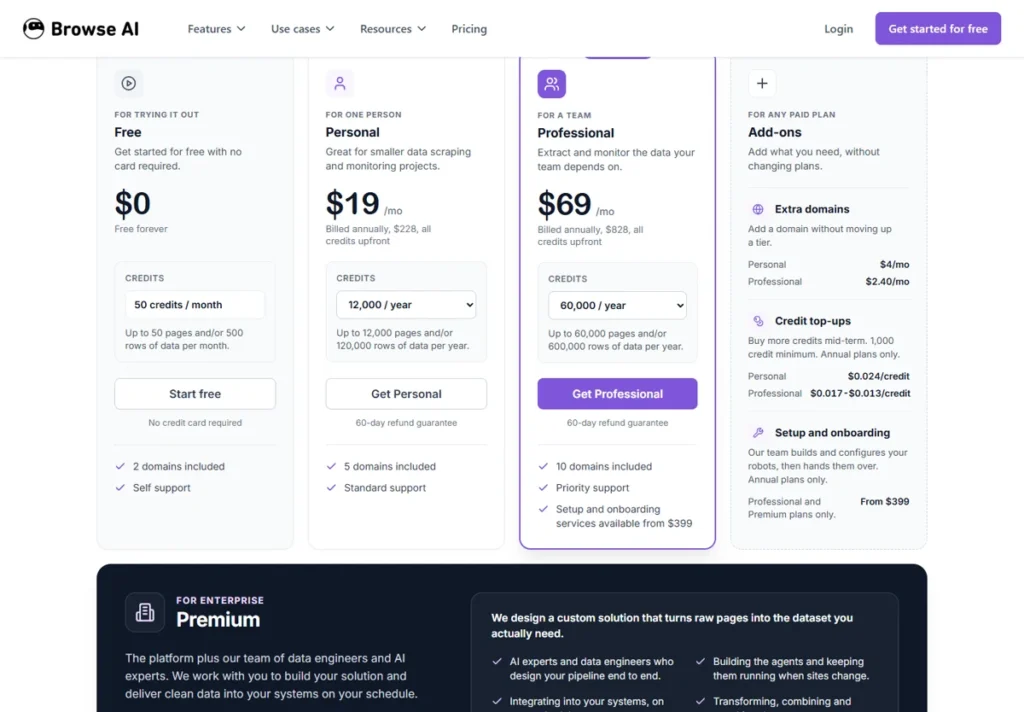
As of November 2026, Browse AI’s pricing page lists these plans (USD, per account):
| Plan | Price | Credits | Websites / users | Fastest monitoring |
|---|---|---|---|---|
| Free | $0 | 50 per month | 2 websites, 3 users | Hourly |
| Personal | $48/month billed monthly, or $19/month billed yearly | 2,000 per month | 5 websites, 3 users | Every 5 minutes |
| Professional | $87/month billed monthly, or $69/month billed yearly | 5,000 to 30,000 per month (tiered) | 10 websites, 10 users | Every 5 minutes |
| Premium | From $500/month, billed yearly | 600,000+ per year | Custom | Custom |
The page also shows a different yearly credit figure for Personal in one section, so confirm the exact allowance on the live page before buying.
How credits work. According to the pricing page, one credit extracts 10 rows of data from a page or captures one screenshot, and a task can cost one or more credits. Some “premium” sites carry a minimum of 2 to 10 credits per run. Unused credits reset at the end of each billing cycle and do not roll over.
Ways to avoid overpaying:
- Estimate before you upgrade. Multiply pages by checks per month by the credits each task actually uses. Run the free plan for a week and read real credit use per task instead of guessing.
- Lower the frequency. Daily checks cost a fraction of hourly ones and rarely miss anything that matters for a small catalog.
- Count websites, not just pages. Plans cap the number of websites, and the page lists paid add-ons for extra websites. Five competitors on five domains already fills the Personal plan.
- Watch out for premium sites. If your competitors sell on sites with a per-run minimum, your credit math changes a lot.
- Go yearly only after the pilot. It is cheaper per month, but only once the workflow sticks.
When should you NOT use a no-code scraper for price tracking?
- You need automatic repricing. Use a dedicated repricing or price intelligence tool.
- You track a huge catalog with fuzzy matching. Matching at scale is a price intelligence feature, not a scraper feature.
- The data is behind logins or terms forbid automation. Use official seller tools or check manually.
- Prices rarely move. A monthly calendar reminder is cheaper and good enough.
- Nobody owns the review. Collection without a reviewer produces a sheet nobody reads.
What are the alternatives to Browse AI for website change monitoring?
Visualping is a website change monitoring service built around alerts on visual or text changes to a page. It suits teams that mainly want “tell me when this page changes” rather than structured rows in a spreadsheet.
Prisync is a dedicated competitor price monitoring tool for ecommerce, including Shopify stores. It is closer to a pricing system and fits once you need catalog matching and pricing rules.
Browse AI sits between them: more structured than a page-change alert, more flexible than a price-only tool. If you later want the same monitoring discipline for how your brand shows up in AI search engines, see our guide on tracking your brand in AI search answers.
How do you run a two-week pilot before paying?
Run this on the free plan with a small page list.
- Week 1: Pick two competitor websites and a few product pages on each. Train one robot per site, set a daily monitor, connect Google Sheets. At the end of the week, check the same pages by hand and compare.
- Week 2: Stop the manual check. Review only from the sheet and alerts, opening source pages for changes that matter. Then score the pilot.
| Measure | Pass | Fail |
|---|---|---|
| Price accuracy vs. manual check | Every page matches, or mismatches have a fixable cause | Wrong prices you cannot explain |
| Failed runs | Rare, and you were alerted each time | Silent gaps in the sheet |
| Weekly review time | Clearly shorter than the manual routine | Same or longer because of noise and fixes |
| Credit use | Projected monthly use fits a plan you are willing to pay for | Projection needs a tier you cannot justify |
| Decisions | At least one pricing or promo discussion used the sheet | Nobody opened it |
If it passes, expand the list and pick a plan from measured credit use. Competitor price moves also feed your next ad offers; ourAI ad creative testing workflow shows how to turn an offer brief into testable variations.
Verdict
Browse AI is a sensible way to take the collection step out of competitor price tracking: robots check pages on a schedule, monitors flag changes, and Google Sheets keeps the history. It does not replace the person who verifies context and makes the pricing call, and its credit and website caps mean you should measure real usage on the free plan before choosing a paid tier.
Best for
- Small ecommerce and SaaS teams that track a short list of competitors and want price history in Google Sheets
- Freelancers and agencies who monitor public pricing or plan pages for clients
- Teams that want alerts on changes without writing or hosting a scraper
Look elsewhere if
- Stores that need automatic repricing or catalog matching across thousands of SKUs
- Monitoring data behind logins or on sites whose terms forbid automated access
- Teams with no one assigned to review alerts and fix robots
Frequently asked questions
How do you find competitor pricing?
Start with public product and pricing pages, marketplace listings, and promotional emails. For ongoing tracking, list exact product URLs, match them to your products, and let a scheduled monitor log changes to a sheet you review weekly.
Is web scraping legal?
It depends on the site's terms, the data and your jurisdiction. Browse AI's help center says users are responsible for compliance and lists comparing prices among often-permitted uses. Read each site's terms, avoid personal data, and get legal advice for large-scale use.
Is Browse AI free?
Browse AI has a free plan. As of November 2026 its pricing page lists 50 credits per month, 2 websites, 3 users and hourly as the fastest monitoring frequency. That is enough for a small pilot, not for daily tracking of a large catalog.
Can I do competitor price monitoring for a Shopify store?
Yes. Monitor competitor product pages with a general tool like Browse AI and log prices to Google Sheets, or use a dedicated price monitoring app if you need catalog matching and repricing rules.
Are there free website change monitoring tools?
Some monitoring tools offer free tiers; Browse AI, for example, has a free plan with a monthly credit allowance. Free tiers suit a pilot or a handful of pages; check each tool's current pricing page for limits before relying on one.