

Disclosure: some links in this guide may be partner links. If you sign up through them, we may earn a commission at no extra cost to you. It does not change what we write.
Quick answer: To convert a blog post to audio, record it yourself, install a text-to-speech plugin, or import the post into an AI voice tool such as ElevenLabs Studio, fix how names are pronounced, listen once, and export an MP3 or embed a player on the page.
Key takeaways
- A WordPress text-to-speech plugin is the fastest start but gives less control over voice and pronunciation.
- ElevenLabs Studio imports a URL, HTML, DOCX or PDF directly, so you skip copy-pasting a script.
- Its free plan lists no commercial license; Starter is $6 a month after a $1 first month.
- The Audio Native on-page player needs the Creator plan or above; a person still does the final listen.
To convert blog post to audio with ElevenLabs, import the finished article into ElevenLabs Studio, pick one consistent voice, fix names with a pronunciation dictionary, listen once, then export an MP3 or publish it to an on-page player. The AI takes over the reading. A person still owns the script cleanup and the final listen.
This guide maps that work step by step for a small publisher or a solo writer: what the old process looked like, which steps ElevenLabs can take over, where a human has to stay in the loop, what it costs as of November 2026, and how to run a two-week pilot before you commit to a plan.
How this guide was put together: based on ElevenLabs' official pricing page, product pages and documentation (Studio and Audio Native), checked November 2026. We have not run a paid account test.
Why turn blog posts into audio at all?
Some readers would rather listen than read: on a commute, while cooking, or when long text is tiring. Audio also gives you a second format from the same piece of writing.
The problem is production. Recording each article yourself takes a quiet room, retakes, and editing. Hiring a voice actor costs more per article and adds a hand-off. Most small blogs try it for a few posts and then stop. A text to speech for blog workflow removes the recording step. The writing, the review, and the decision to publish stay with you.
Decide the output first: a downloadable file for a podcast feed, a player at the top of each post, or narration for a video version. The steps below cover all three.
What are the ways to convert a blog post to audio?
You can convert a blog post to audio in four broad ways: read it yourself, install a text-to-speech plugin on your site, use an AI voice studio such as ElevenLabs, or use a simpler article-to-audio converter. There is also a zero-effort option on the reader’s side, because most browsers and phones can already read a page aloud. Check whether your audience actually wants a file or a player from you before paying for anything.
| Method | Best for | Setup effort | Control over voice and names | What you still do by hand | Cost to start |
|---|---|---|---|---|---|
| Record it yourself | Personal brands where your own voice is the point | High: quiet room, mic, editing software | Full | Recording, retakes, editing, re-recording every update | A microphone you may already own |
| WordPress text-to-speech plugin | Adding a “listen” button to every post quickly | Low: install and configure the plugin | Limited to the voices and settings the plugin offers | Checking how names, numbers and code sound | Varies by plugin; some charge for cloud voices |
| ElevenLabs Studio and Audio Native | Publishers who want one consistent voice, files and an on-page player | Medium: choose a voice and build a pronunciation dictionary once | High: voice settings, alias and phoneme tags, per-paragraph regeneration | The listening edit of the text and one final listen | Free plan without a commercial license; Starter $6 a month after a $1 first month; Audio Native from Creator (as of November 2026) |
| Narakeet | Turning a document or article into an audio file with little setup | Low | Check its current voice and pronunciation options | Text cleanup and a final listen | Check Narakeet’s current pricing page |
| Murf AI | Narration that ends up inside training or explainer videos | Medium | High, with a timeline for syncing narration to slides | Script edits and a sync check | Check Murf’s current pricing page |
How to choose: start from where the audio will live. A “listen” button on every post points to a plugin or to ElevenLabs Audio Native. A podcast feed or a downloadable file points to a studio export. Narration inside a video points to Murf or a similar tool, covered in our guide to AI voiceover for training videos. Then weigh control against effort: if your posts are full of product names, technical terms or non-English names, you will want a pronunciation dictionary, which pushes you past the simplest plugins. If you would rather use your own voice, editing gets much lighter when you edit the recording by editing its transcript, and the finished audio can be cut into clips the same way you would repurpose a podcast episode.
What does the workflow look like before and after?
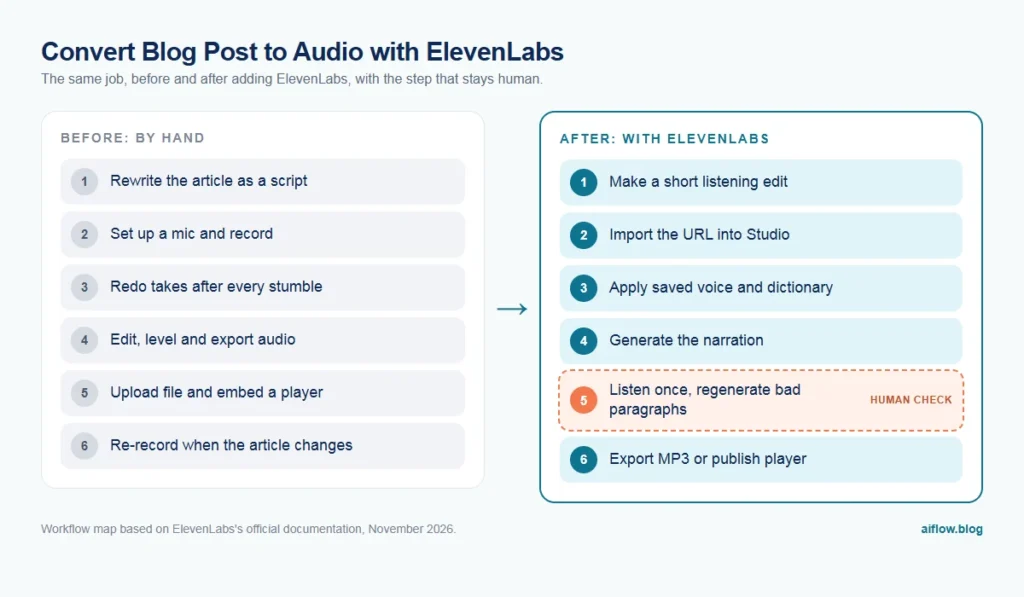
Before: manual narration
- Finish and publish the article.
- Copy the text into a script document and rewrite parts that only work visually (tables, code, “see the chart below”).
- Set up a mic and record, with retakes for stumbles.
- Edit the recording: cut mistakes, level the volume, export.
- Upload the file to a host or media library and embed a player.
- Re-record any section that changes when the article is updated.
After: AI narration with a human checkpoint
- Finish the article and make a short “listening edit” of the text (you, about the same effort as a proofread).
- Import the text or URL into ElevenLabs Studio (tool).
- Apply your saved voice and pronunciation dictionary (tool, after a one-time setup).
- Generate the audio (tool).
- Listen once at normal speed and regenerate any bad paragraph (you).
- Export an MP3, or publish to the Audio Native player on your page (tool, with your approval).
- When the article changes, edit only the affected paragraph and regenerate it (tool plus a quick listen from you).
Recording and audio editing disappear. Judgment stays: what the listener should hear, and whether the result is good enough to publish under your name.
How do you convert blog post to audio with ElevenLabs, step by step?
Step 1: Make a listening edit of the text
Text written for the eye does not always work for the ear. Before import, scan the post for:
- Tables and lists of numbers. Summarize them in a sentence, or tell the listener the full table is on the page.
- Visual references like “as shown above” or “click the button on the right.”
- Code, URLs and file paths. Skip them or describe them in plain words.
- Abbreviations that should be spelled out or read as a word.
Step 2: Create a Studio project
In ElevenLabs Studio, start a new audio project from your file. The documentation lists EPUB, PDF, DOCX, TXT, HTML and URL as import formats. For a blog post, a URL or a DOCX of your listening edit is the simplest route. Studio splits the text into chapters and paragraphs, so you can later fix one section without redoing the rest.
Step 3: Choose one house voice
Pick one voice and use it for every article, so your audio posts sound like one publication. You can give a quoted interview its own voice, but each voice change means new audio for those paragraphs.
Step 4: Build a pronunciation dictionary once
Brand names, product names, people and acronyms are where AI narration slips most often. Studio supports pronunciation dictionaries with alias tags (read “SaaS” as “sass”) and phoneme tags (phonetic spelling). The docs note that phoneme tags work only with specific models, so alias tags are the safer default. Rules are checked in order and the first match wins, so put specific entries before general ones. Build the dictionary from your first few articles and reuse it.
Step 5: Generate and listen
Generate the project, then listen once at normal speed and mark any paragraph with a misread word or odd pause. Studio allows up to two free regenerations of a paragraph if you do not change the text, voice or voice settings. Use them for small glitches before you start editing the text.
Step 6: Export or publish
You have three outputs to choose from:
- Audio file: export MP3 or WAV for a podcast host or your media library.
- On-page player: Audio Native is an embeddable player that voices a page’s content or plays a Studio project. You allowlist your domain or specific pages, copy a small HTML snippet into your site, and choose the voice and model in its settings. The docs list integration guides for WordPress, Ghost, Webflow, Squarespace, Wix, Framer and React. Audio Native is available on the Creator plan and above.
- Video voiceover: export the narration and lay it under a slideshow or screen recording in your video editor, or use the video layout in Studio if your project has a video track.
Step 7: Handle updates
When you revise an article, edit and regenerate only the affected paragraphs. For Audio Native, the docs describe re-exporting and publishing the new version to the player. Add this to your update checklist.
Where is the human checkpoint?
There are two checkpoints, and neither should be skipped.
Before generation: the listening edit. Only someone who knows the article can decide that a table should become one spoken sentence. This step separates a useful audio version from a robot reading a web page.
After generation: one full listen. Listen at normal speed, not at double speed, with the text in front of you. Check for:
- Names and brand terms read wrongly (add them to the dictionary).
- Numbers, prices and dates read in a confusing way.
- Missing or repeated words.
- Tone that does not match the topic, such as a cheerful read over a serious subject.
Assign one named person to sign off. If nobody owns the final listen, errors reach readers.
What are the limits and risks?
- Accuracy. AI voices can misread numbers, units and uncommon names. A wrong figure in audio is harder for a listener to catch than a wrong figure on the page.
- Commercial use. As of November 2026, the pricing page lists a commercial license from the Starter plan up. The Free plan’s feature list does not include one, so do not publish free-plan audio on a monetized site.
- Voice rights and consent. Instant voice cloning is listed from Starter and professional voice cloning from Creator. Clone only your own voice or a voice you have written permission to use. Studio’s docs note that instant voice clones must be verified before export.
- Data. Your article text is sent to a third-party service. That is usually fine for published posts. Think twice before running drafts with embargoed or client-confidential content.
- Disclosure. Tell listeners the narration is AI-generated, in the player area or show notes.
- Quality ceiling by plan. Studio exports on Free, Starter and Creator are 128 kbps MP3. Pro and higher add 192 kbps MP3 or 44.1 kHz WAV. For spoken word on a blog, 128 kbps is usually acceptable. For a podcast feed you care about, listen to a sample before deciding.
How much does it cost to convert text to audio with AI on ElevenLabs?
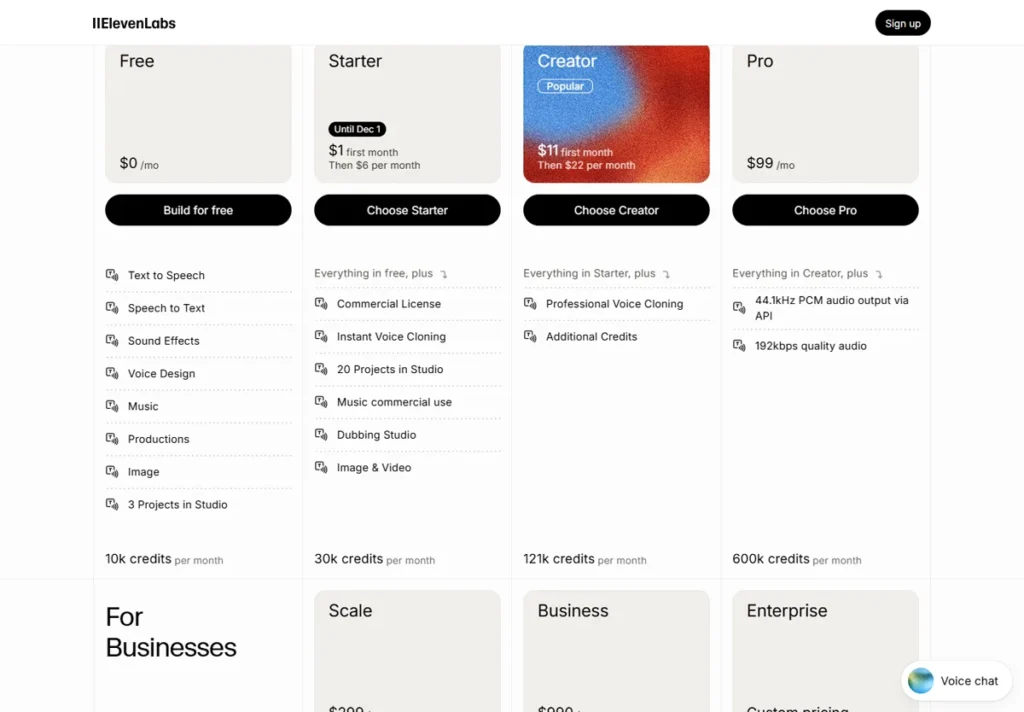
ElevenLabs sells monthly credit plans. Credits are shared across all its products, and text to speech uses roughly one credit per character of text. Prices below are in USD, as of November 2026, per account, from the official pricing page.
| Plan | Monthly billing | Credits per month | Approx. TTS minutes | Relevant for this workflow |
|---|---|---|---|---|
| Free | $0 | 10k | ~10 | Testing only; no commercial license listed |
| Starter | $1 first month, then $6 | 30k | ~30 | Commercial license, instant voice cloning |
| Creator | $11 first month, then $22 | 121k | ~121 | Audio Native player, professional voice cloning |
| Pro | $99 | 600k | ~600 | 192 kbps audio |
Scale ($299 per month, 3 seats) and Business ($990 per month, 10 seats) exist for teams, and Enterprise is custom. Annual billing gives you 12 months for the price of 10.
How to avoid overpaying
- Size the plan from your own text. Take the character count of your last month of posts (most editors show it) and compare it with the credit allowance. Since text to speech is about one credit per character, that tells you which tier fits.
- Do not budget from the first-month price. The $1 Starter and $11 Creator offers revert to $6 and $22.
- Use rollover, but do not rely on it. On paid plans, unused credits roll over for up to two months, capped at twice the monthly quota. Downgrading or canceling forfeits unused credits at the end of the cycle.
- Edit before you generate. Every text change means new audio. A clean listening edit up front saves credits.
- Use the free regenerations. Studio’s free regenerations cover small glitches without new credit use, as long as you keep the text and voice settings the same.
- Go annual only after the pilot. Lock in once you know your monthly volume.
When should you not use AI narration for your blog?
- Your voice is the product. If listeners follow you for your personality, a synthetic voice weakens the very thing they came for. Record those yourself.
- The content is mostly visual. Tutorials built around screenshots, charts or code do not translate to audio without a full rewrite.
- You publish rarely. Recording an occasional post yourself may be faster than maintaining a new tool.
- Accuracy is regulated. Medical dosages, legal wording or financial figures need a level of review that may cancel out the time saved.
- Nobody will do the final listen. Without the human checkpoint, do not publish audio at all.
What are the alternatives?
- Murf AI. A studio built around voiceovers for presentations, training and explainer videos, with a timeline for syncing narration to slides and video. It suits teams whose audio ends up inside video more than on a blog. See our guide to AI voiceover for training videos.
- A WordPress text to speech plugin. Some plugins read pages aloud using built-in browser or cloud voices. They are simpler to install but give you less control over pronunciation and voice quality.
How do you run a two-week pilot?
Run a small, measurable pilot before you pay for a higher tier.
- Days 1–2: Start on Starter (it has the commercial license). Pick one house voice. Build a pronunciation dictionary from your brand name, product names and recurring jargon.
- Days 3–9: Convert five recent posts. For each, log the minutes spent on the listening edit, generation, the final listen and fixes. Log credits used.
- Days 10–14: Publish the audio on those posts (as a download or a player) with an AI-narration note. Track plays or listens and any reader feedback.
| Criterion | Pass | Fail |
|---|---|---|
| Hands-on time per post | Under 30 minutes from listening edit to export | Over 45 minutes, or more than recording yourself |
| Errors found in final listen | Three or fewer per post, all fixable with the dictionary or a regeneration | Repeated misreads you cannot fix |
| Credits | Five posts fit comfortably inside the plan allowance | You run out before the end of the pilot |
| Reader response | No complaints about the voice; some listens recorded | Complaints, or zero listens across all five posts |
If all four pass, consider Creator for the Audio Native player. If hands-on time fails, the bottleneck is usually the listening edit, not the tool.
Verdict: is ElevenLabs a good way to turn blog posts into audio?
For a writer or small team that publishes regularly, ElevenLabs takes over the slowest part of making audio: recording and editing. Studio handles long text with per-paragraph fixes, and Audio Native adds an on-page player from Creator. It does not remove the editorial work; the listening edit and final listen are what make the audio worth publishing.
Verdict
ElevenLabs is a practical way to convert blog posts to audio when someone still owns the listening edit and final listen. Start on Starter for the commercial license, move to Creator if you want the Audio Native player, and size the plan from your real character count.
Best for
- Blogs and newsletters that publish text weekly and want an audio version of each post
- Writers who want narration for video versions of articles without recording
- Small teams that need a commercial license and a consistent house voice
Look elsewhere if
- Creators whose own voice is the product
- Visual-heavy tutorials, code walkthroughs, or chart-led posts
- Anyone planning to publish free-plan audio on a monetized site
Frequently asked questions
Is ElevenLabs free?
There is a Free plan at $0 with 10k credits per month as of November 2026. Its feature list does not include a commercial license, so treat it as a test plan. The commercial license is listed from the Starter plan up.
How do I convert an article to audio for free?
You can test the workflow on the ElevenLabs Free plan by importing the article into Studio and exporting an MP3. Free-plan output is for trying the process; for audio on a monetized site, use a paid plan with a commercial license.
Can ElevenLabs voice be monetized on YouTube?
ElevenLabs lists a commercial license from the Starter plan up. YouTube also has its own policies on AI-generated and reused content, so check those separately and disclose that the narration is AI-generated.
How do I download audio from ElevenLabs?
In Studio, use Export to download MP3 or WAV. For multi-chapter projects you can export each chapter, the full project as one file, or a ZIP of chapter files. Previous exports stay available in the export history.
Is there a text to speech WordPress plugin for ElevenLabs?
ElevenLabs offers Audio Native, an embeddable player with an integration guide for WordPress. You add a small HTML snippet and allowlist your domain. It is available on the Creator plan and above.