

Disclosure: some links in this guide may be partner links. If you sign up through them, we may earn a commission at no extra cost to you. It does not change what we write.
Quick answer: To take meeting notes with AI, turn on a notetaker (the assistant built into Zoom, Meet or Teams, or a dedicated tool such as MeetGeek), choose a summary template before the call, and have one person check decisions, owners and dates before the recap goes out.
Key takeaways
- Built-in AI notes in Zoom, Meet or Teams are the easiest start when every call runs on one platform.
- Dedicated notetakers such as MeetGeek add cross-platform capture, summary templates, and pushes to CRM or task tools.
- You can avoid a visible bot: MeetGeek's desktop app records from your computer instead.
- MeetGeek's free Basic plan includes 3 hours of transcription a month, enough for a small pilot.
Here is how to take meeting notes with AI in a way you can trust: let a notetaker such as MeetGeek record and transcribe the call, have it draft the summary, decisions and action items from a template you chose in advance, and keep one person responsible for checking owners and dates before the recap email goes out. The AI does the typing and the first draft. A human still signs off on who does what by when.
This guide maps that workflow step by step for freelancers and teams of two to twenty people. It covers setup, the human checkpoint, cost as of November 2026, risks, and a short pilot to decide whether it is worth paying for.
How this guide was put together: based on MeetGeek's official pricing page, product pages and help center, checked November 2026. We have not run a paid account test.
How to take meeting notes with AI: what does the workflow replace?
Most teams do not lose time in the meeting itself. They lose it afterward: someone rewrites scribbled notes, tries to remember who agreed to what, writes a recap email, and copies tasks into the project tool.
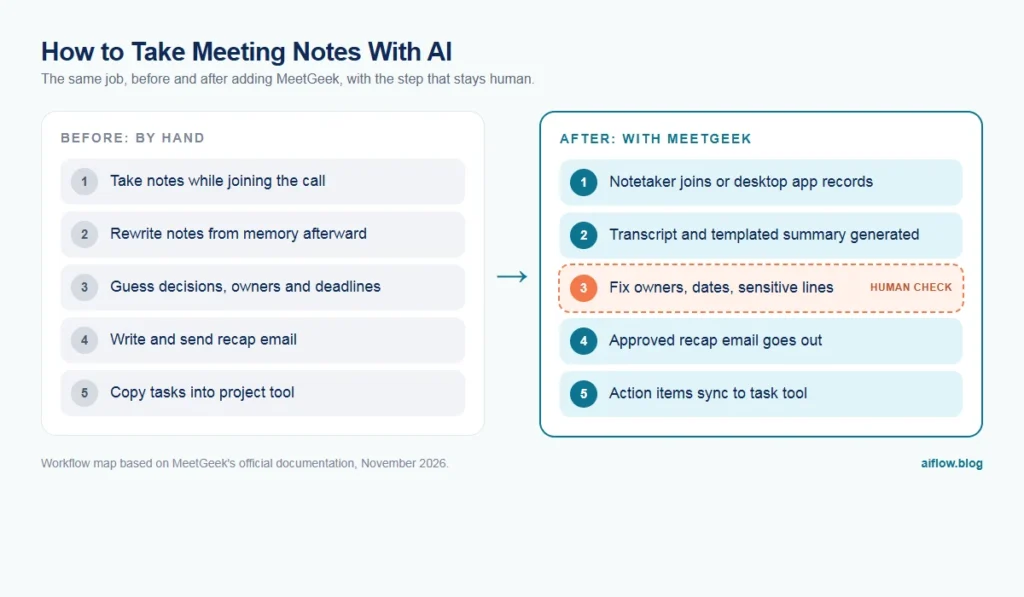
An AI notetaker takes over the capture and drafting steps. It does not take over judgment. Here is the same weekly client call before and after.
Before: the manual version
- One person takes notes while also trying to take part in the call.
- After the call, they clean up the notes from memory.
- They pull out decisions and action items and guess at deadlines nobody said out loud.
- They write and send a recap email, often hours later.
- They copy tasks into Asana, ClickUp or a spreadsheet by hand.
After: the AI-assisted version
- The calendar invite triggers the notetaker, which joins and records (or the desktop app records without a bot).
- The call ends and the tool produces a transcript and a summary built from your template: topics, key decisions, action items, next steps.
- Human checkpoint: the meeting owner reads the action items, fixes owners and dates, and deletes anything wrong or sensitive.
- The approved summary goes out as the recap email, to the people you chose.
- Action items flow to your task or CRM tool through an integration.
- Everyone can search the transcript later instead of asking around.
Only the checkpoint step needs a person. Never skip it.
What are the ways to take meeting notes with AI: built-in, bot, or no bot?
There are three broad ways to take meeting notes with AI. You can switch on the assistant built into the meeting platform you already use, add a dedicated notetaker that joins the call as a bot, or use a tool that records from your own computer with no bot in the call. Manual notes are still the baseline to compare against. The table shows what each option leaves on your plate.
| Method | Best for | Bot in the call? | Setup effort | What you still do by hand | Cost to start |
|---|---|---|---|---|---|
| Manual notes (doc or notebook) | Short, sensitive or in-person conversations | No | None | Everything: capture, summary, recap, task entry | Nothing extra |
| Built-in AI: Zoom AI Companion, Gemini “Take notes for me” in Google Meet, Copilot in Teams | Teams whose calls all run on one platform | No; it runs inside the platform | Low: an admin or host turns it on | Checking the summary, moving tasks into other tools, searching across platforms | Depends on your Zoom, Google Workspace or Microsoft 365 plan; ask your admin |
| MeetGeek | Mixed platforms, template-shaped summaries, action items pushed to a CRM or task tool | Yes on Zoom, Meet and Teams; the desktop app records without one | Medium: calendar, auto-join rules, template, one integration | Fixing owners and dates, approving the recap | Free Basic plan; paid plans on the pricing page |
| Otter.ai or Fireflies.ai | The same core job as MeetGeek; compare them on your own meetings | Yes, a notetaker joins the call | Medium | The same review step | Check each vendor’s current pricing page |
| Granola | People whose clients object to a bot joining | No; it captures your computer’s audio | Low: install the app | The same review step; you can also type rough notes for it to build on | Check the vendor’s current pricing page |
How to choose: if every call happens on one platform and you only need a readable summary, try the built-in assistant first. It adds no new vendor and no extra participant. Move to a dedicated notetaker when calls are spread across Zoom, Meet and Teams, when you want the same summary template every time, or when action items must land in a CRM or project tool. Pick a no-bot option (MeetGeek’s desktop app or Granola) when clients push back on a visible recorder, and stay manual for HR, legal or medical conversations where a recording should not exist at all. Whichever you choose, the review step stays the same. If you also record interviews to publish, the same transcript can feed transcript-based podcast editing.
How do you set up AI meeting notes in MeetGeek, step by step?
The setup below follows MeetGeek’s getting started guide and its meeting templates article.
- Connect your calendar. Sign up with a Google or Microsoft account. MeetGeek reads your calendar and lists upcoming meetings that have a Zoom, Google Meet or Microsoft Teams link.
- Decide which meetings it joins. In General Settings, the Automatic Join rule is set separately for internal meetings (same email domain) and external meetings. If several teammates use MeetGeek, MeetGeek suggests setting internal meetings to “Only host” so one call is not recorded by several bots.
- Pick a capture method per meeting type. For Zoom, Meet and Teams, the Notetaker joins as a visible participant. For other platforms, in-person meetings, or calls where you would rather not have a bot, MeetGeek points you to its desktop app for Mac and Windows, which records from your computer.
- Choose a template before the call, not after. A template controls what the summary contains. MeetGeek’s default sections include discussion topics, key decisions, action items and next steps; each section you turn on becomes its own block in the summary email. On the free plan, one “General Meeting” template applies to every meeting. Paid plans get the full library and automatic template detection.
- Set who receives the summary email. By default, all participants receive it. You can limit it to team members or send it only to yourself. MeetGeek says these email summary controls start on the Pro plan. For the workflow in this guide, send it to yourself first so you can review before anyone else sees it.
- Connect where the output should land. MeetGeek’s integrations page lists CRMs (Salesforce, HubSpot, Pipedrive and others), project tools (Asana, Monday.com, Jira, ClickUp, Trello), notes tools (Notion, OneNote, Confluence, Google Docs), Slack, and automation through Zapier, Make, n8n, a public API and an MCP server. Connect one destination only during the pilot.
- Set the recording disclaimer. When the Notetaker joins it posts a recording disclaimer, and you can set a standing one in settings. Say it out loud too, and offer to remove the bot.
If a transcript comes out in the wrong language, MeetGeek’s help center describes a “Re-run analysis” option after the meeting; the guide says it takes about 10 minutes.
Where should the human checkpoint sit?
Put it between the AI draft and the recap email. That is the single point where a wrong owner or invented deadline turns into a real commitment.
Give the review to the meeting owner, not to “whoever has time.” Use a short checklist:
- Owners: is every action item assigned to a named person who actually agreed to it?
- Dates: were the deadlines said out loud, or did the summary infer them? Remove inferred dates or confirm them.
- Decisions vs. ideas: did someone float an idea that the summary now presents as a decision?
- Sensitive content: pricing, HR matters, health details, off-the-record remarks. Delete them from anything that leaves the team.
- Names and numbers: product names, client names and figures are where transcription errors hurt most. Check them against the transcript.
If you are rewriting most summaries, the template is wrong, not the reviewer. Change the sections, or use MeetGeek’s Custom Summary option (free-form text with placeholders) to force the structure you need.
How do you turn AI meeting notes into a follow up email after the meeting?
The recap email is where the workflow pays off, because it is the step people skip. Build your template so the summary already reads like a recap:
- Decisions first. One line each, in plain language.
- Meeting action items with owner and date on every line.
- Open questions that still need an answer, and who will chase them.
- Next meeting date and goal, if one was set.
- Link to the transcript for anyone who wants detail.
For client calls, keep the email short and skip the full summary. Clients want the decisions and their own tasks, not a record of every topic. For internal calls, a Slack or Notion post often works better than email.
If you want a related workflow for recorded content rather than meetings, see our guide to repurposing a podcast episode into a week of content.
What are the limits and risks of AI meeting notes?
Four risks matter more than any feature list.
Consent and recording law
Recording rules differ by state and country, and some require every participant’s consent. The visible bot and disclaimer help, but they are not legal advice. Ask before recording external calls, offer to turn it off, and do not record HR, legal or medical conversations unless your policy allows it. MeetGeek lists recording consent notifications as a Business plan feature.
Accuracy
MeetGeek’s homepage claims a word error rate “as low as 2.8%.” That is a best case published by the vendor, not a guarantee for your accents, crosstalk or jargon. Summaries can also turn a suggestion into a decision.
Data and storage
Transcripts hold client names, prices and plans. On MeetGeek’s pricing page, storage depends on plan: on the free Basic plan, transcripts are kept 3 months and audio 1 month; Pro keeps transcripts 1 year and audio 6 months. MeetGeek’s homepage lists SOC 2 Type II, GDPR and CCPA, offers a HIPAA BAA, and states that customer meetings are not used to train models. Read the security details on the official site yourself before you record client calls, and decide your own retention rule.
Over-reliance
The AI can only extract what was said. Keep stating owners and dates out loud at the end of the call.
How much does MeetGeek cost, and how do you avoid overpaying?
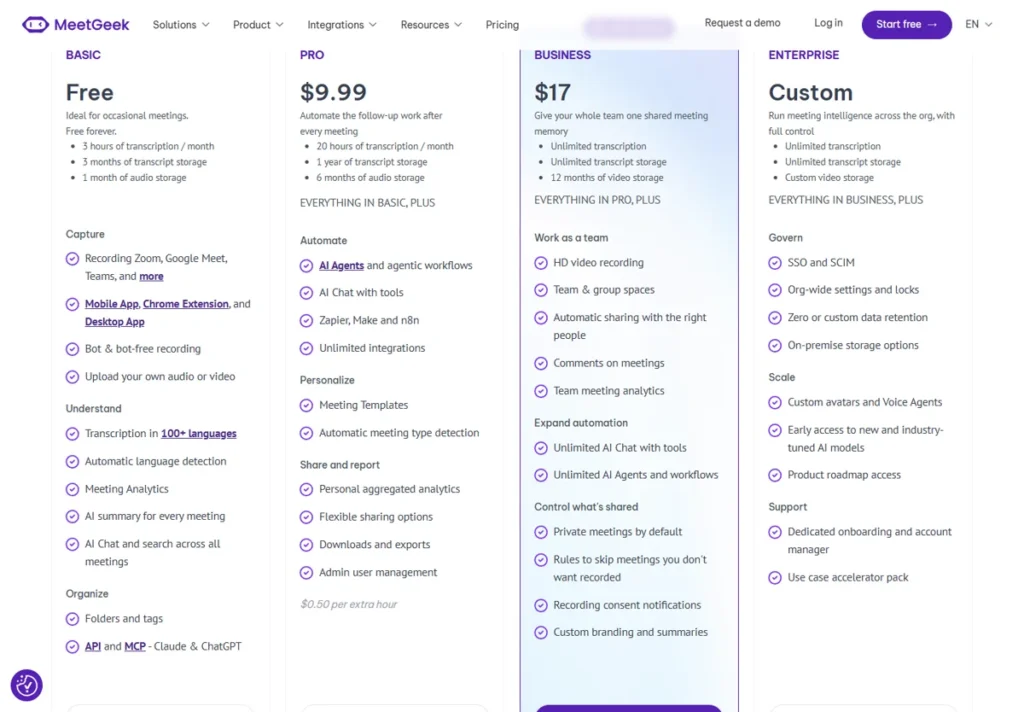
Figures below are from the MeetGeek pricing page as of November 2026.
| Plan | Price shown | Transcription | Max length per meeting | Transcript storage |
|---|---|---|---|---|
| Basic | Free | 3 hours / month | 2 hours | 3 months |
| Pro | $15.99 on the plan card; $9.99 per user / month in the cost calculator | 20 hours / month, then $0.50 per extra hour | 2 hours | 1 year |
| Business | $27 on the plan card; $17 per user / month in the calculator; 14-day trial | Unlimited | 3 hours | Unlimited |
| Enterprise | Custom | Unlimited | 4 hours | Unlimited |
The page offers monthly and yearly billing and says yearly saves “up to 40%.” It does not label which billing term each figure belongs to, so the lower calculator prices look like the yearly rate. Confirm the per-user price and billing term at checkout before you commit.
How to avoid overpaying:
- Count your hours first. Add up a typical month of recorded meetings. If you are under 3 hours, the free plan may be enough for a trial. Pro’s 20-hour allowance covers roughly one hour-long meeting per working day.
- Pay only for people who run meetings. The pricing page says free Basic licenses can be combined with paid plans for teams, so attendees who only read summaries may not need a paid seat.
- Know what you need from Pro. Email summary controls, the template library and unlimited integrations are where Pro earns its price in this workflow. If you will paste summaries by hand, the free plan may do.
- Go yearly only after the pilot.
- Ignore third-party coupon sites. MeetGeek’s own FAQ warns that promo codes from them are fake. The pricing page lists its own discount for startups, non-profits and education.
When should you not use an AI notetaker?
- Sensitive conversations: performance reviews, legal disputes, health topics, negotiations where a recording changes how people talk.
- Calls where the other side says no. Respect it. Take manual notes.
- Teams with no task system. If action items have nowhere to go, automated extraction just creates a longer inbox.
- Regulated work without approval. If your industry or client contract limits where recordings are stored, get sign-off before you start.
What are the alternatives to MeetGeek for AI meeting summaries?
Two fair options, depending on your setup:
- The AI built into your meeting platform. Zoom’s AI Companion and Microsoft Copilot in Teams can produce meeting summaries inside tools you already pay for. If all your calls happen on one platform and you do not need CRM sync or cross-platform search, start there.
- Other dedicated notetakers such as Otter.ai and Fireflies.ai. They cover the same core job (record, transcribe, summarize, push to other tools) and differ in plan limits, integrations and interface. Compare them on the same real meetings, not feature lists.
MeetGeek’s case is strongest when you mix platforms, need summaries shaped by templates, and want action items pushed into a CRM or project tool.
How do you pilot AI meeting notes in two weeks?
Run this yourself on the free plan or the Business trial before paying for a team.
Week 1: set up and shadow.
- Pick one recurring meeting type (for example, the weekly client check-in) and one owner.
- Set the template, send the summary only to the owner, and connect one destination tool.
- For the first three meetings, the owner also keeps their usual manual notes. Compare the AI action items with the manual list.
- Time the review step for each meeting.
Week 2: go live.
- Stop manual notes. The owner reviews the AI draft and sends the recap.
- Track how soon after the call the recap goes out.
- Ask participants: “Did the recap match what you agreed?”
| Measure | Pass | Fail |
|---|---|---|
| Action items caught vs. manual notes | Nearly all, with only small fixes | Regularly misses or invents tasks |
| Review time per meeting | A few minutes | As long as writing notes by hand |
| Recap sent | Same day, every meeting | Still skipped or delayed |
| Participant feedback | “Matches what we agreed” | Corrections or complaints |
| Consent | No objections, or easy opt-out | Clients uncomfortable with the bot |
If it passes, extend to a second meeting type. If it fails on accuracy, change the template first.
Once meetings are under control, the next time sink is usually the calendar itself. Our guide to auto-scheduling tasks and focus time covers that step.
Verdict
MeetGeek covers the full chain this workflow needs: capture, template-based summaries, recap email controls and integrations. The real gain comes from a fixed template and a one-person review before anything is sent. Start free or on the trial, run the two-week pilot, and pay only for the people who run meetings.
Best for
- Small teams with recurring client or internal calls across Zoom, Meet and Teams
- Freelancers who skip recap emails when busy
- Teams that want action items pushed into a CRM or project tool
Look elsewhere if
- Sensitive or regulated conversations without explicit approval
- People whose calls are short and rarely produce decisions
- Teams with no place to track tasks
Frequently asked questions
Is MeetGeek free?
Yes, there is a free Basic plan. As of November 2026 the pricing page lists 3 hours of transcription per month, a 2-hour limit per meeting and 3 months of transcript storage on it. Paid plans add more hours, longer storage, template choice and email summary controls.
How much does MeetGeek cost?
As of November 2026 the pricing page shows Pro at $15.99 on the plan card and $9.99 per user per month in its calculator, and Business at $27 on the card and $17 per user per month in the calculator. Yearly billing is said to save up to 40%. Check the current pricing page for the billing term before buying.
Does MeetGeek work for in person meetings?
According to MeetGeek's help center, in-person meetings are recorded with the desktop app (Mac and Windows) rather than the bot; the homepage also mentions the mobile app for in-person and hybrid meetings.
Is MeetGeek HIPAA compliant?
MeetGeek's homepage lists a HIPAA BAA and says it will sign Business Associate Agreements. Confirm which plan includes it with MeetGeek before recording any health information.
Are AI notetakers legal?
Recording rules vary by state and country, and some places require consent from everyone on the call. A visible bot and disclaimer help, but ask participants before recording and check your local rules or legal counsel.
Can AI take meeting minutes?
It can draft them. A tool like MeetGeek produces a transcript, summary, decisions and action items from a template. A person should still check owners, dates and sensitive content before the minutes are shared.