
Disclosure: some links in this guide may be partner links. If you sign up through them, we may earn a commission at no extra cost to you. It does not change what we write.
Quick answer: To edit a podcast with AI, transcribe the recording, make the structural cut by deleting text, run automatic filler-word, pause and noise cleanup, then listen to the full episode once before export. Descript does all of this in one project; other tools cover single steps.
Key takeaways
- Transcript editing turns the rough cut from scrubbing a waveform into reading and deleting text.
- Descript's filler-word removal works on English transcripts only; check other languages by ear.
- Cleanup tools use AI credits on current Descript plans, so watch credits, not just media hours.
- Keep one full listening pass: a cut that reads cleanly can still sound abrupt.
To edit podcast with AI, you transcribe the recording, then cut, reorder and clean it by editing the text: delete a sentence in the transcript and the matching audio and video disappear with it. Tools like Descript then add one-click cleanup for filler words, long pauses, retakes and background noise, so the rough cut that used to take a full listen-through becomes a reading-and-deleting job.
This guide maps the podcast editing workflow before and after, shows which steps Descript can take over, where a human still has to listen, what the plans cost as of November 2026, and how to run a two-week pilot that tells you whether it actually saves you time.
How this guide was put together: based on Descript's official pricing page, product pages and help center, checked November 2026. We have not run a paid account test.
What does it mean to edit a podcast by editing the transcript?
Text based video editing turns your recording into a document. Every word is time-linked to the media underneath it. When you select a rambling answer in the script and press delete, the editor removes that stretch of audio and video. When you drag a paragraph higher, the clip moves with it.
Descript’s help center describes it plainly: every file you add becomes editable text, so you edit the media by editing the transcript. That changes who can do the rough cut. A host, producer or marketer who reads faster than they scrub a timeline can now make the structural decisions, and a specialist editor (if you have one) only handles the final polish.
It does not replace listening: a cut that reads cleanly can still sound abrupt, so the workflow below keeps a human listening pass.
What are the ways to edit a podcast with AI?
“Editing a podcast with AI” covers several different jobs: the structural cut, removing filler words and pauses, cleaning up noise, and drafting chapters or clips. Some tools do one job well; Descript tries to do most of them in one project. Here is how the main options compare.
| Method | Best for | Filler and pause removal | Noise cleanup | What you still do by hand | Cost to start |
|---|---|---|---|---|---|
| Manual editing in a DAW (Audacity, Reaper, GarageBand) | Music-heavy shows and editors fluent on a waveform | By hand | Plugins and effects you apply yourself | Every cut and every check | Software you may already have |
| AI built into an editor you already use (Premiere Pro text-based editing, CapCut) | Teams already working in that editor | CapCut offers filler-word removal; Premiere Pro focuses on cutting by text | Depends on the editor | Final listen and anything the feature skips | Part of your existing plan, if it includes the feature |
| Descript | Interview shows where the rough cut is mostly structural | Remove Filler Words (English transcripts), Shorten Word Gaps, Remove Retakes | Studio Sound | Structural decisions, reviewing suggestions, the full listen | Free plan with 60 media minutes a month; paid plans on the pricing page |
| Riverside | Teams that want remote recording and transcript-based editing in one place | Check Riverside’s current feature list | Check Riverside’s current feature list | The same listening pass | Check Riverside’s current pricing page |
| Single-job cleanup tools (Adobe Podcast Enhance Speech, Cleanvoice) | Rescuing poor audio, or stripping fillers before editing elsewhere | Cleanvoice focuses on fillers, mouth sounds and silences | Adobe Podcast Enhance Speech focuses on voice clarity and background noise | All structural editing | Check each vendor’s current pricing page |
How to choose: name your slowest step first. If it is the rough cut, a transcript-first editor such as Descript or Riverside saves the most effort. If it is bad audio, a cleanup tool may be all you need, and you can keep your current editor. If you already work in Premiere Pro, try its text-based editing before adding a subscription. Whatever you choose, keep one full listening pass at the end. Once an episode is edited, the same transcript is the starting point to repurpose the episode into a week of content. If you produce narrated pieces from written text rather than recordings, see how to turn blog posts into audio.
Podcast editing workflow: before and after
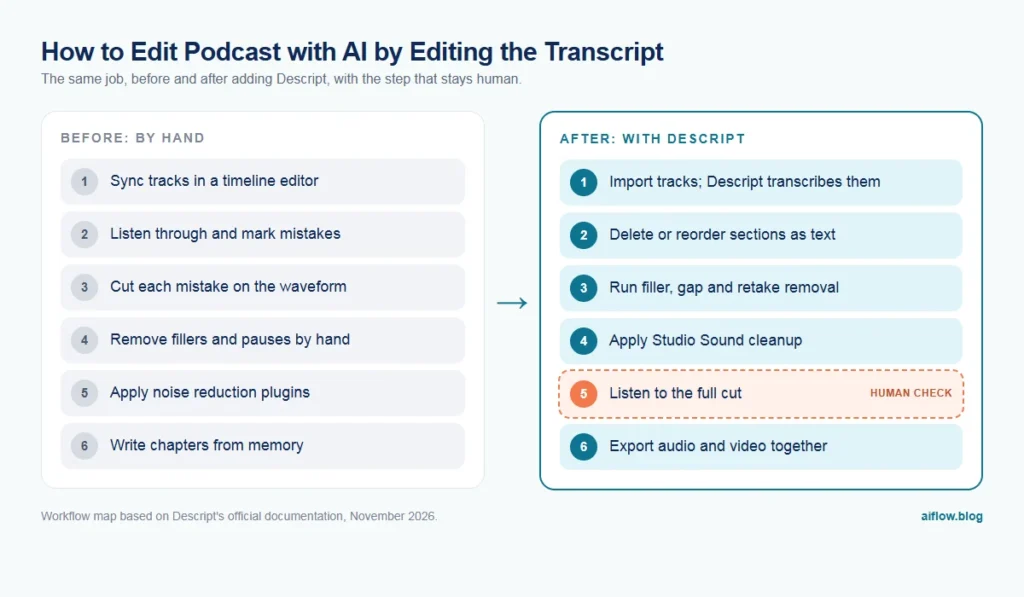
Here is a typical interview-show workflow, mapped step by step. The left list is the classic waveform approach; the right list is the transcript-first version.
Before: waveform-first editing
- Import the host and guest tracks into a timeline editor and sync them.
- Listen through the full episode, dropping markers on mistakes and dull sections.
- Cut each marked section by hand on the waveform.
- Hunt down “um”, “uh” and long pauses one by one.
- Apply noise reduction and leveling with plugins.
- Listen again to check every cut.
- Write chapters and show notes from memory or a separate transcript.
- Export audio, then rebuild a video version separately if you publish on YouTube.
After: transcript-first editing in Descript
- Import the tracks; Descript transcribes them and you confirm speaker labels.
- Skim the transcript and delete or reorder whole sections as text (the structural cut).
- Run Remove Filler Words and Shorten Word Gaps from the AI Tools panel, reviewing the suggestions.
- Run Remove Retakes to catch phrases the speaker re-recorded.
- Apply Studio Sound to reduce background noise and room echo.
- Human checkpoint: listen to the full cut at normal speed.
- Use Add Chapters to draft chapter markers and a timestamped list for show notes.
- Export the audio and the video version from the same project.
The steps that move to the tool are the tedious ones: finding fillers, pauses and retakes, and cleaning the sound. The steps that stay human are the judgment calls: what the episode is about, which tangent stays, and whether the final cut sounds natural.
Which steps can AI take over, and which stay human?
| Step | Who does it | Why |
|---|---|---|
| Transcription and speaker labels | Tool, human spot-check | Labels can fail to stick on misaligned transcripts, per Descript’s help center. |
| Structural cut (what stays) | Human | This is editorial judgment about your audience. |
| Filler words, gaps, retakes | Tool suggests, human approves | Each suggestion can be previewed before it is applied. |
| Noise and echo cleanup | Tool | Studio Sound targets voice quality, background noise and room echo. |
| Final listen | Human | Text cannot tell you a cut sounds abrupt. |
| Chapters and show-note timestamps | Tool drafts, human edits | Generated titles often need rewording for your voice. |
If you also turn each episode into blog posts, newsletters and social clips, that is a separate job with its own tools. See our guide on how to repurpose podcast content into a week of posts.
How to edit podcast with AI in Descript: step-by-step setup
1. Set your transcription language first
Descript lets you set a default transcription language or turn on “Always ask before transcribing” for multilingual shows. Do this before importing, because re-transcribing later can disturb corrections you already made.
2. Import separate tracks when you can
Record host and guest on separate tracks if you can. It makes speaker detection cleaner and lets you fix one voice without touching the other.
3. Correct the transcript before you cut
Use the correct-your-transcript workflow to fix misspelled names, product terms and speaker labels. These corrections change the text only, not the media. Fixing them first means your show notes and captions start clean.
4. Do the structural cut as text
Read the transcript once and delete whole answers, false starts and off-topic segments. Move a strong answer to the top if you want a cold open. Keep this pass editorial; do not chase every “um” yet.
5. Run the Sound Good tools
Open the AI Tools panel and use the tools in this order:
- Remove Filler Words detects words like “um”, “uh” and “you know”. Filler words appear underlined in the script, and you choose how to handle them: Delete, Delete and replace with gap, Ignore, or Remove from transcript. Turn on Avoid harsh cuts so the tool skips fillers it cannot remove without clipping nearby words.
- Shorten Word Gaps trims long pauses. Preview a few before shortening all of them.
- Remove Retakes marks earlier versions of re-recorded phrases as ignored text, which you can restore or delete.
- Studio Sound improves voice quality and evens out inconsistent audio across speakers.
- Edit for Clarity can remove wordiness and off-topic segments with an intensity slider. Use a low setting on interviews; it is easy to remove personality along with filler.
6. Prefer Ignore over Delete while you review
The Ignore option strikes the word through in the script but removes it from the audio, so the edit is visible and reversible. Delete once you have listened and are happy.
7. Draft chapters and export
Add Chapters generates chapter markers and titles and can copy a timestamped list for your show notes or share page. Export audio for your podcast host and video for YouTube from the same project.
Where is the human checkpoint?
Put one mandatory checkpoint after cleanup and before export: a full listen at normal speed by the person who owns the show. Check for:
- Clipped words and breaths where a filler or gap was removed too tightly.
- Meaning changes where removing a phrase or retake changed what the guest said. If a cut changes a guest’s meaning, restore it.
- Jump cuts in video where the speaker’s head visibly jumps; decide whether to cover them or keep them.
- Names and numbers in chapters and show notes, which come from the transcript and inherit its errors.
Keep a short checklist in the project so a second person can run the same check if the host is away.
What are the limits and risks?
- Transcript accuracy. Descript’s help center says accuracy can reach up to 95% with clear audio, and that accents, background noise, mic placement and overlapping speakers lower it. Crosstalk-heavy episodes need more manual correction.
- Filler-word detection is English-only. The help center states the feature currently detects filler words in English transcripts only. Non-English shows will rely on manual cleanup for this step.
- File length. Files longer than 15 hours fail to transcribe automatically, according to the help center. Split marathon recordings before import.
- Music is not transcribed. Only speech is transcribed, so music-heavy segments cannot be edited as text.
- AI credits run out. On current plans the Sound Good tools, including filler-word removal, use AI credits. The help center does not list a per-tool credit cost, so watch your balance during the pilot.
- Consent and rights. Tell guests their recording will be transcribed and edited with AI tools, and do not use AI speech features to put words in a guest’s mouth without their explicit approval.
- Data. Recordings live in a cloud service; check guest agreements and Descript’s privacy terms before uploading confidential material.
How much does Descript cost, and how do you avoid overpaying?
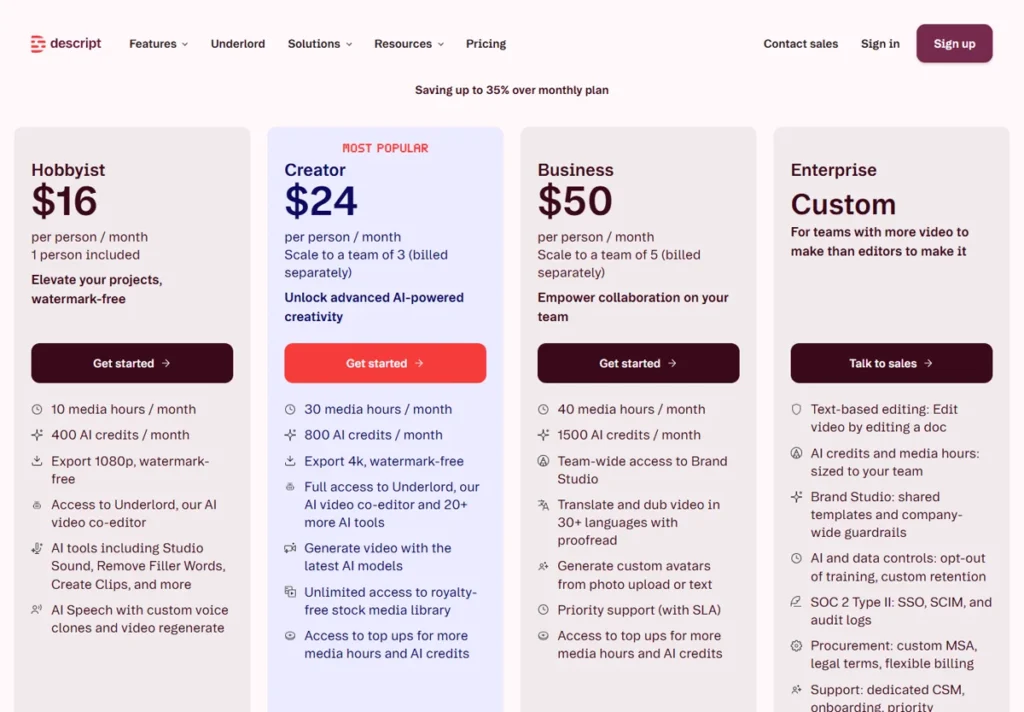
As of November 2026, Descript prices are per person per month. The lower figure is the price with annual billing; the higher figure is the monthly-billed price. Descript says annual billing saves up to 35% over monthly.
| Plan | Annual billing | Monthly billing | Media per month | AI credits | Export |
|---|---|---|---|---|---|
| Free | $0 | $0 | 60 minutes | 100, one-time | 720p |
| Hobbyist | $16 | $24 | 10 hours | 400 per month | 1080p |
| Creator | $24 | $35 | 30 hours | 800 per month | 4K |
| Business | $50 | $65 | 40 hours | 1,500 per month | 4K |
| Enterprise | Custom | Custom | Custom | Custom | Check with sales |
The Free plan does not include watermark-free export; paid plans do. Creator can be shared by up to 3 seats and Business by up to 5, and because prices are per person, team cost grows with each seat. Always confirm on the current Descript pricing page before buying.
How to avoid overpaying
- Pilot on monthly billing. Pay the higher monthly price for the pilot, then switch to annual only once the workflow sticks.
- Size the plan by media hours, not features. Add up the raw recording time you import each month, including retakes and multiple camera angles, and pick the plan that covers it.
- Count AI credits separately. If you run every Sound Good tool on every episode, credits may run out before media hours do.
- Give seats only to editors. Reviewers who only listen and comment may not need a paid seat; check what the share options allow on your plan.
When should you NOT use transcript editing?
- Music, sound design or narrative audio drama, where most of the work happens between the words.
- Film and TV finishing, where you need a full timeline editor for color, multicam and delivery specs.
- Heavy crosstalk panels with several people talking over each other; transcript errors will cost you more time than they save.
- Non-English shows that depend on filler removal, since that detection is English-only today.
What are the alternatives to Descript for this workflow?
Riverside combines remote recording with its own transcript-based editing, which suits teams that want recording and editing in one place. Adobe Premiere Pro offers text-based video editing inside a full professional timeline, which suits editors who already work in Premiere and need finishing tools Descript does not aim to replace. CapCut also offers filler-word removal for short social edits. Compare current plans on each vendor’s own site; we have not listed their prices here.
If your bottleneck is the meeting or interview notes rather than the episode itself, our AI meeting notes workflow covers that step.
How do you run a two-week pilot?
Run the pilot on real episodes, not demo files, and compare against your current process.
- Baseline (before day one). Write down how long your last two or three episodes took to edit, from import to export, and how many fixes listeners or your team flagged.
- Week one. Edit one or two episodes in Descript using the steps above. Log time per stage: transcript correction, structural cut, cleanup, final listen, export.
- Week two. Edit one or two more episodes, now with a written checklist. Have a second person do the final listen on one of them.
- Track credits and hours used per episode to project your monthly plan.
Pass/fail criteria
- Pass: total editing time per episode drops by at least a third against your baseline.
- Pass: the final listen finds no more than a handful of clipped words or bad cuts per episode, and none that change meaning.
- Pass: projected monthly media hours and AI credits fit the plan you would buy.
- Fail: transcript correction takes longer than the time saved in cleanup, which usually points to poor audio or heavy crosstalk.
If you pass on all three, switch to annual billing. If you fail, fix the recording setup (separate tracks, closer mics) and repeat once before deciding.
Verdict
Transcript-first editing in Descript moves the slow, mechanical parts of podcast editing (filler words, pauses, retakes, noise) to the tool and leaves the editorial calls and the final listen with you. It earns its seat when your audio is clean and your episodes are conversation-heavy. Pilot it on monthly billing with real episodes and buy annual only once the time savings show up in your log.
Best for
- Interview and solo podcasts that publish audio and video from the same recording
- Hosts or producers who make editorial cuts faster by reading than by scrubbing a timeline
- Small teams of up to five editors sharing one cleanup workflow
Look elsewhere if
- Music-led shows, audio drama and sound design work
- Film or broadcast finishing that needs a full professional timeline
- Non-English shows that rely on automatic filler-word removal
Frequently asked questions
Is it hard to edit a podcast?
The mechanical part is tedious rather than hard: finding mistakes, fillers and pauses. Transcript-based editors make that part closer to editing a document. The hard part is still editorial judgment about what to keep, and a careful final listen.
How long does it take to edit a podcast?
It depends on episode length, audio quality and how polished you want it. The useful number is your own baseline: time your current process, then compare it during a two-week pilot of transcript editing.
Is Descript free?
Descript has a Free plan at $0 with 60 media minutes per month, 100 one-time AI credits and 720p export, as of November 2026. It does not include watermark-free export, so most published shows will need a paid plan.
Does Descript have a free trial?
The pricing page lists a Free plan rather than a timed trial of paid plans. Check the current pricing page for any trial offers before you sign up.
How do I remove filler words from audio for free?
In Descript, Remove Filler Words uses AI credits on current plans, and the Free plan includes 100 one-time credits. The help center does not list the credit cost per use, so test it on a short file first. Detection currently works on English transcripts only.